Skyrocket Digital Book Initial Configuration
If neither Skyrocket Digital Book nor the book cover over a blue background is displayed at startup, or if the buttons do not work correctly, follow the instructions below:
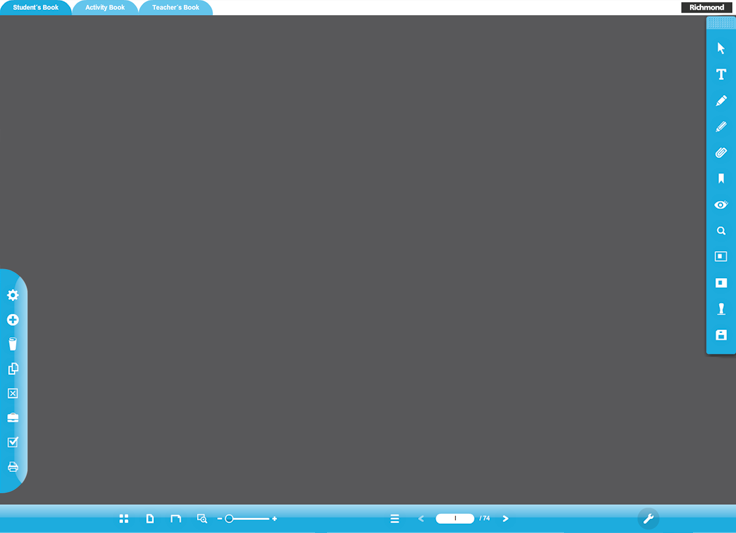
1. Right-click on the blue area and select Global Settings.
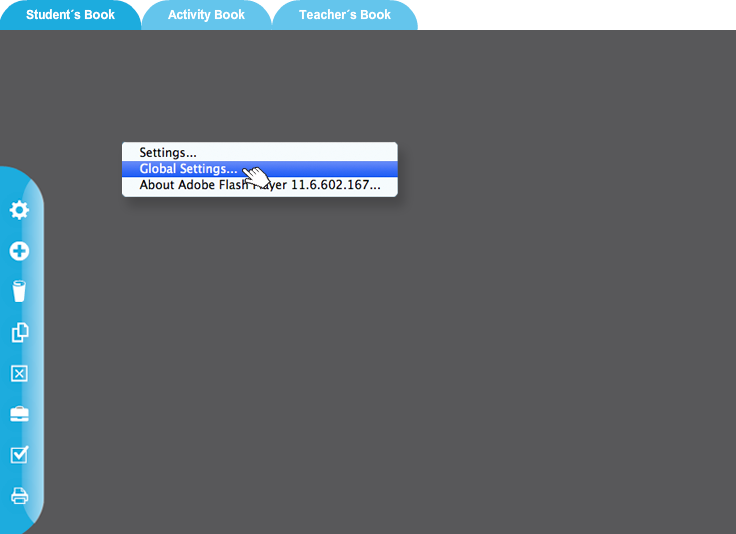
2. The following screen will appear. Click on the Advanced tab.
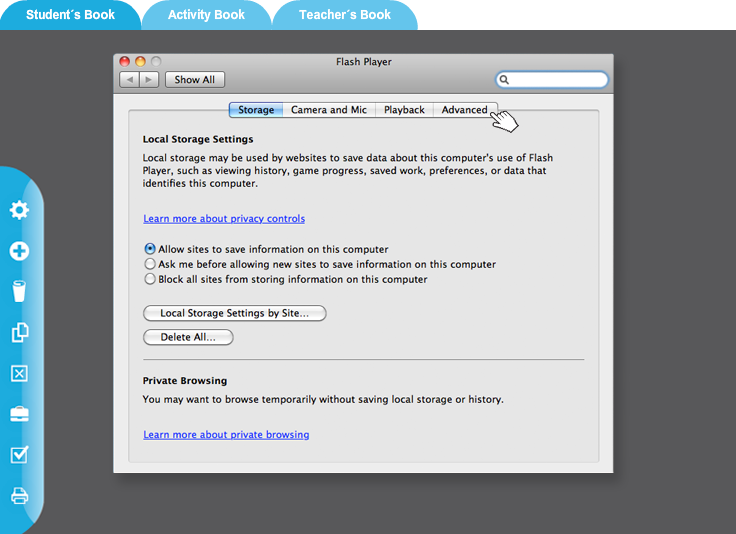
3. Click on the Trusted Location Settings button.
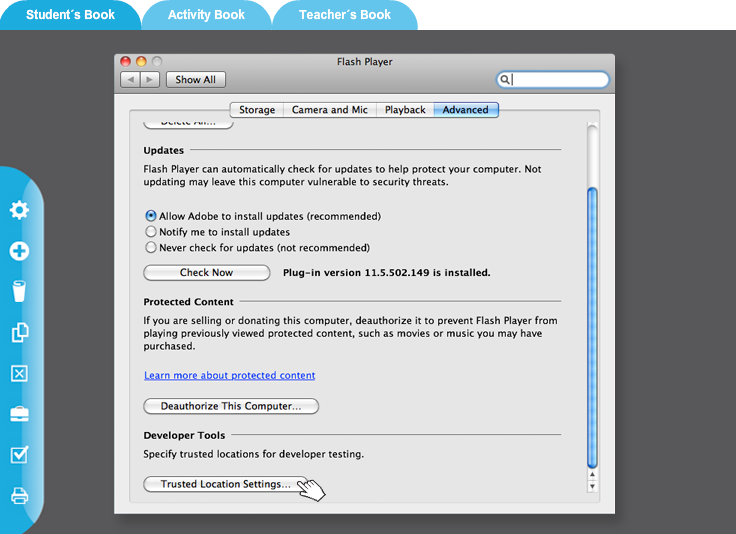
4. Click on Add.
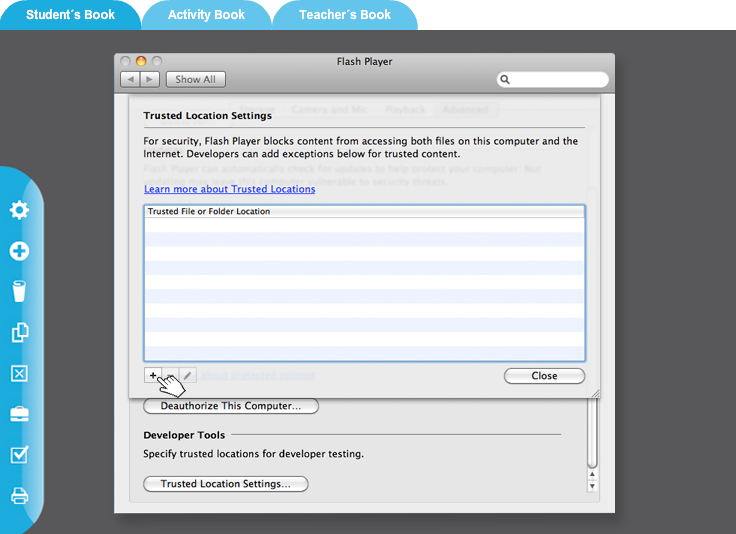
5. Type the letter of the USB unit where Skyrocket Digital Book is located—for instance, E:/— and click on Close / OK.
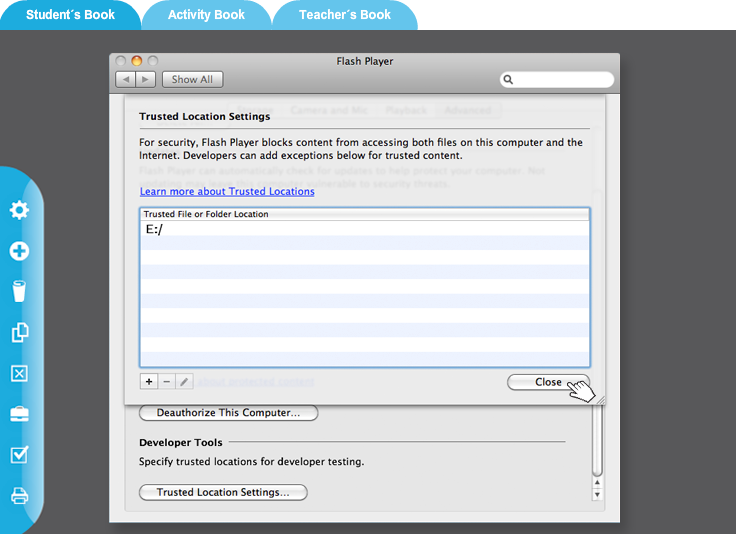
6. Close the browser and go back to Skyrocket Digital Book.
System Requirements
For a better display, press the F11 key to view Digital Book in full screen mode.
*If the resolution is low, change the settings from your desktop or press the F11 key to go into full screen mode. |